How to set up an Apple TV as a calm family dashboard
A phone asks to be checked. A television in the corner simply is. Done properly, the biggest screen in the house becomes the one place you can glance at on the way to the kettle and stop wondering — which is a different job from an alert feed, and needs different rules.
The instinct with a large screen is to fill it: charts, trends, a timeline, three relatives side by side, colour-coded everything. Resist all of it. An ambient display earns its place by being readable from eight feet away in under a second, and by being boring on the days when nothing is wrong — which is most of them.
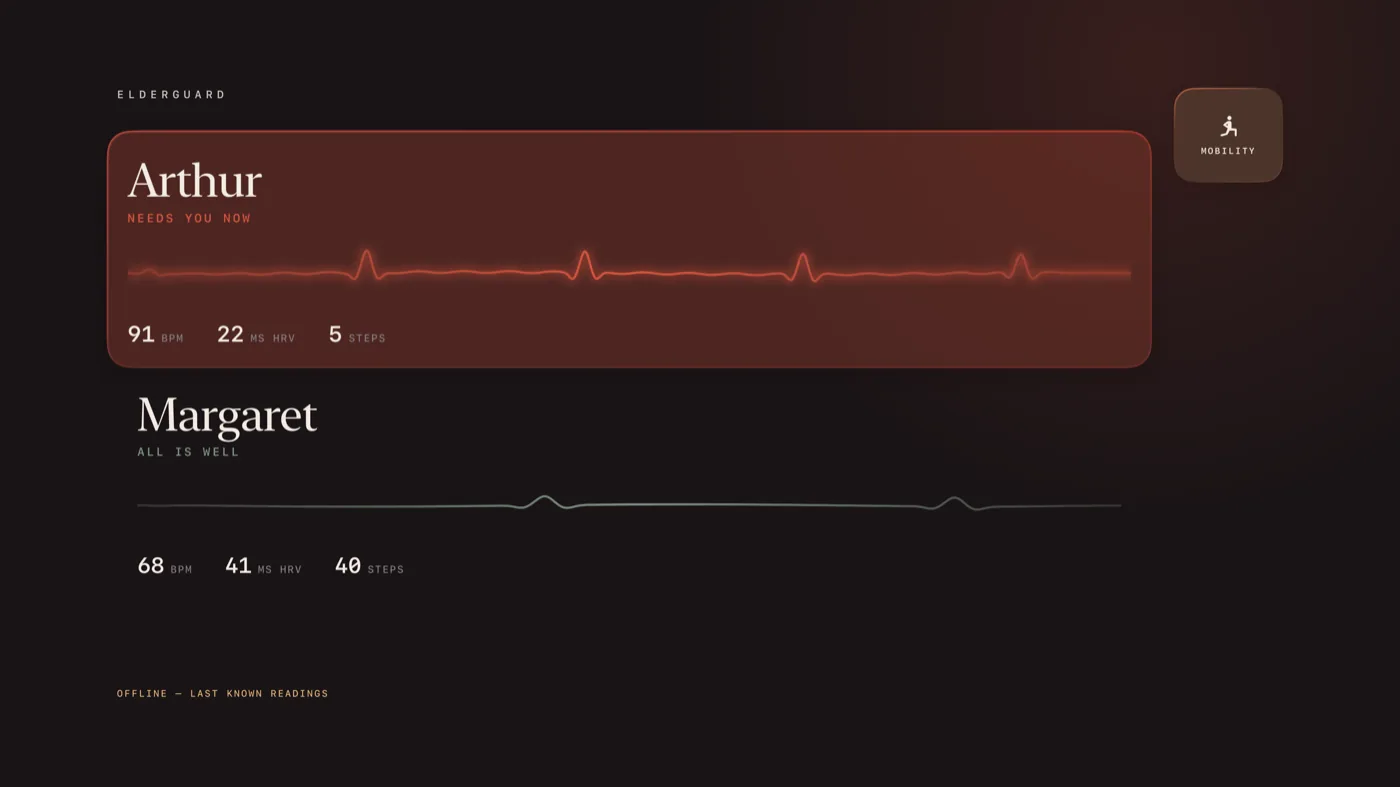
Step 1. Decide whose room the screen is in
This decision changes everything downstream, and it is the one people skip.
- In the carer's home. The screen is about someone else. It should answer one question — are they all right — and then get out of the way. This is the common case and the rest of this guide assumes it.
- In the older person's home. Now the screen is about the person sitting in front of it, and the rules tighten considerably. A display that reports on your own body, in your own living room, all evening, is not reassuring; it is a reminder that you are being assessed. If you put one here, it should show connection — that family are around, that a call is coming on Sunday — rather than measurements. In ElderGuard Link, judgements about readings are for the family; the wearer's own screen shows their heartbeat and nothing that would alarm them.
If you are unsure which you are building, that is a sign to go back to the conversation about what gets shown and to whom before you mount anything.
Step 2. Place it at glance height
An ambient screen works on peripheral vision. Where it goes matters more than what is on it.
- A room people pass through — kitchen, hallway, the end of a landing — beats the room where people sit down. You want it caught in passing, twenty times a day, not stared at once.
- Not opposite the sofa. A dashboard in the primary eyeline while you are trying to watch something else is an anxiety generator, and it will be turned off within a week.
- Not in a bedroom. The last thing before sleep and the first thing on waking should not be a health readout about a parent. This one is worth being strict about.
- Away from a window, or the glare wins and everyone gives up.
An old television and a current-generation Apple TV do this job perfectly well. Nothing here needs a new screen.
Step 3. Sign in and install the app
Sign the Apple TV into the same account that already has access to the shared readings — for ElderGuard Link, that is the family member who was invited by the wearer, not the wearer's own account. Then install the family app from the App Store on the device.
One practical warning: a television in a shared house is a shared device. Anyone who walks into that room can read what is on it, including visitors, cleaners and grandchildren. If the agreement you made was that two named people would see the readings, a hallway screen quietly breaks it. Either move the screen somewhere private, or go back and re-agree the terms. The convenience is not worth the breach of an explicit promise.
Step 4. Tune sleep, screen saver and brightness
Out of the box, an Apple TV is configured to be a television. A few settings turn it into furniture.
- Settings → General → Sleep After. The default will blank the screen faster than you want. Lengthen it enough that the dashboard is genuinely there when someone walks past, but do not set it to never — a panel showing the same static image for months is how you get burn-in on an OLED.
- Settings → General → Screen Saver. Set it to start after a long interval, and pick something dark and slow. Bright aerial footage in a dim hallway at eleven at night is startling.
- Brightness, on the television itself. Turn it down — further than feels right in daylight. An ambient display should be at the edge of noticeable, not the brightest object in the room. Many sets have an eco or ambient light sensor mode; use it.
- Sound off. Mute the television, or at minimum silence interface sounds. A dashboard should never make a noise.
Step 5. Decide what appears — and what never does
The whole discipline of an ambient screen is subtraction. A useful living-room display holds three things:
- A state. One word or one colour per person, readable across the room. Fine. Learning. No recent readings. Needs attention. Not a number.
- A time. When the last reading arrived. This is the single most valuable element, because a screen showing yesterday's data as though it were today's is worse than a blank one — which is why ElderGuard Link treats a gap in readings as news in its own right rather than as silence.
- One line of plain language. A short sentence about the last day, in words rather than figures.
What should never be on the living-room screen:
- Raw vitals as a headline. A large number that moves invites amateur diagnosis. Family members will read meaning into normal variation and ring for no reason, and the person on the other end will stop answering.
- A scrolling event log. A feed asks to be watched. A state does not.
- Anything red that is not urgent. If the screen cries wolf even once a month, everyone learns to ignore it, and it stops working on the day it matters.
- Location, or a record of comings and goings. Even where it is technically available, putting it on a wall converts monitoring into surveillance in one step.
Step 6. Keep the alerts on the phone
Divide the labour: the television reassures, the phone interrupts.
Anything genuinely urgent should reach you as a notification on the device in your pocket, because you are not standing in the hallway at four in the morning. The screen's job is the other twenty-three hours — the quiet confirmation, on the way past with a laundry basket, that things are as they were.
Keeping alarms off the wall also protects the screen's meaning. If the television is where bad news appears, people start avoiding the hallway. If it is only ever the calm view, glancing at it costs nothing, and that is what makes it get used.
Step 7. Live with it for a fortnight, then cut something
Leave it alone for two weeks and pay attention to your own behaviour. Are you glancing, or are you stopping to study it? Stopping means there is too much on there. Did anything on the screen make you anxious about something that turned out to be nothing? Remove that element.
Ask the rest of the household too. A dashboard that quietly stresses your partner every evening is a net loss even if it comforts you.
The end state you are aiming for is unglamorous: a screen nobody talks about, that everybody has looked at today, that says the same thing it said yesterday. Most days nothing is wrong. A good ambient display is one that lets you believe that without checking twice.
ElderGuard Link is not a medical device. It does not diagnose, treat or prevent any condition, it cannot promise to detect every fall or to summon help, and it is not a substitute for an emergency alert system or for medical care. Do not rely on a living-room screen to raise an alarm. If someone needs help, call your local emergency number.